
When using Samsung Tool, you may occasionally need to change the HWID to sign in on a new computer, reinstall Windows, replace a hard drive, or switch to a different working environment. Instead of waiting for manual support, you can use credits to change the HWID more quickly from your account.
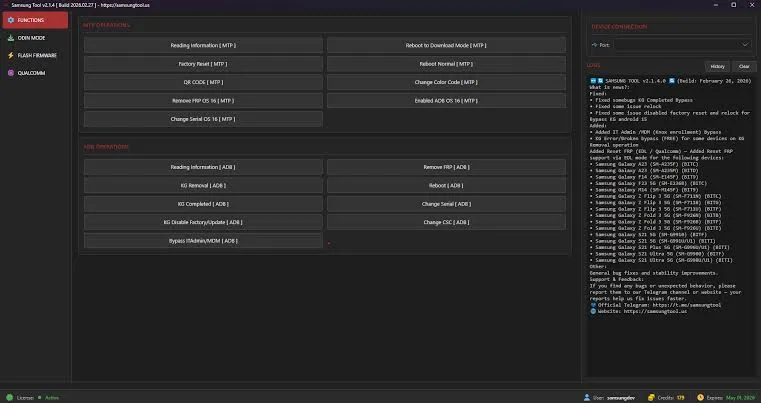
This guide explains step by step how to change the Samsung Tool HWID using credits, along with important precautions to help you avoid wasting credits.
What is an HWID?
HWID stands for Hardware ID, a unique identifier associated with a computer’s hardware. Some licensed software uses the HWID to identify the device authorized to use an account or license.
In simple terms, when you activate Samsung Tool on a computer, the system records information about that device. If you later move to another computer or reinstall the operating system, the HWID may change and the account may need to be updated before it can be used normally again.
When do you need to change the Samsung Tool HWID?
You may need to change the HWID in the following situations:
- You want to move your Samsung Tool account to another computer immediately without waiting for the 12-hour reset period.
- You have reinstalled Windows or changed computer hardware.
- You have replaced the hard drive, motherboard, or work computer.
- The tool reports that the current computer does not match the previously activated device.
- You urgently need to use the account again and do not want to wait for manual support.
With the credit-based HWID change feature, the process can be completed more quickly, which is useful when you need to resume work immediately.
Need to rent or purchase Samsung Tool?
If you do not yet have a Samsung Tool account, you can use ThueVIP’s Samsung Tool rental or purchase/activation services. Renting is suitable when you only need the tool for a short period, while purchasing or activating a longer-term account is more suitable for technicians who use it regularly.
Related services:
- Rent Samsung Tool at an affordable price with fast account delivery
- Purchase or activate an official Samsung Tool account
- Purchase Samsung Tool credits for an existing account
What does changing the HWID with credits mean?
Changing the HWID with credits allows you to update the HWID directly from your account without submitting a manual support request.
Instead of waiting for an administrator to review and process the request, the system deducts credits from your account and updates it with the new HWID. Once confirmed, the change usually takes effect immediately.
The main advantages are:
- No need to wait for manual processing.
- Useful when you urgently need to use the tool.
- You can complete the change directly from your account.
- It saves time when switching computers or reinstalling the operating system.
Requirements before changing the HWID
Before proceeding, carefully check the following requirements:
- Your Samsung Tool account is still active.
- Your account has enough credits for the HWID change.
- The new computer is ready for use.
- You are certain that you want to update the HWID to the current device.
- Your Internet connection is stable during the process.
An instant HWID change normally costs 3 credits. The required number of credits may change depending on the provider’s policy, so check the notice displayed on the dashboard before confirming.
How to change the Samsung Tool HWID using credits or after 12 hours
Step 1: Sign in to your account
First, open the Samsung Tool account page and sign in using the credentials provided to you.
https://user.samsungtool.us/account
After signing in successfully, check the account status, expiration date, and available credit balance. If the account does not have enough credits, you will need to add more before changing the HWID.
Step 2: Open the HWID management section
On the account dashboard, look for a section related to HWID, Account or My Account, or Hardware ID.
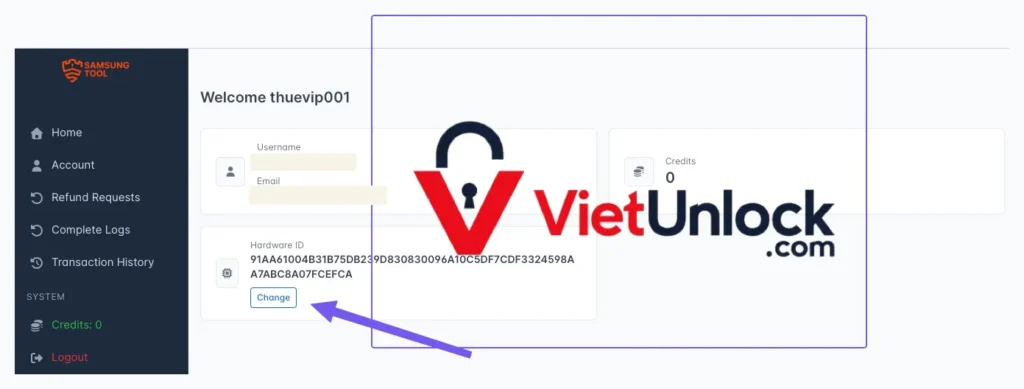
The section name may vary depending on the interface, but it is normally located under account settings or license information.
Here, you should see the current HWID and an option to change it if the account supports this feature.
Step 3: Select the instant HWID change option
Select Instant HWID Change, the free HWID change option available after 12 hours, or the instant credit-based option.
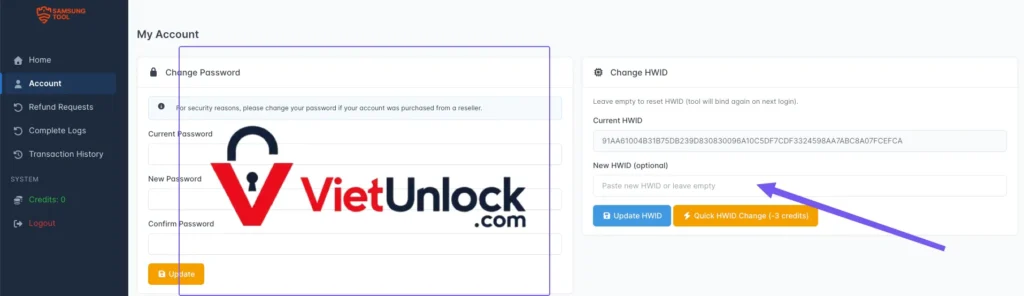
The system will display the number of credits required. Read the notice carefully before continuing, because the credits may be deducted immediately after confirmation and are usually non-refundable.
Note: The HWID will be retrieved from the Samsung Tool installation on your current computer.
Step 4: Review the information before confirming
This is a very important step.
Before confirming, make sure you are performing the change on the computer where you intend to use Samsung Tool. If you confirm the change on the wrong computer, you may lose credits and need to change the HWID again.
Check the following:
- You are using the correct account.
- You are using the correct computer.
- The account has enough credits.
- You have not accidentally signed in to someone else’s account.
- The Internet connection is stable to prevent an interruption during the process.
Step 5: Confirm the HWID change
Once you have reviewed everything, confirm the HWID change.
When the process is complete, the system will deduct the required credits and update the account with the new HWID. You can then reopen Samsung Tool and sign in to verify the change.
If all information is correct, the account will recognize the new device and you can continue using the tool.
Important notes when changing the HWID
Read the following points carefully before proceeding:
- Each instant HWID change costs credits.
- Used credits are usually non-refundable.
- Avoid changing the HWID repeatedly unless it is necessary.
- Only confirm when you are certain that you are using the correct computer.
- If the tool still displays an error after the change, close it completely, reopen it, and sign in again.
- If the tool still does not work, take a screenshot of the error and send it to support for faster assistance.
Common issues after changing the HWID
However, if you are not certain that the error is caused by an HWID mismatch, investigate the issue carefully before making the change. Changing the HWID unnecessarily may waste credits.