
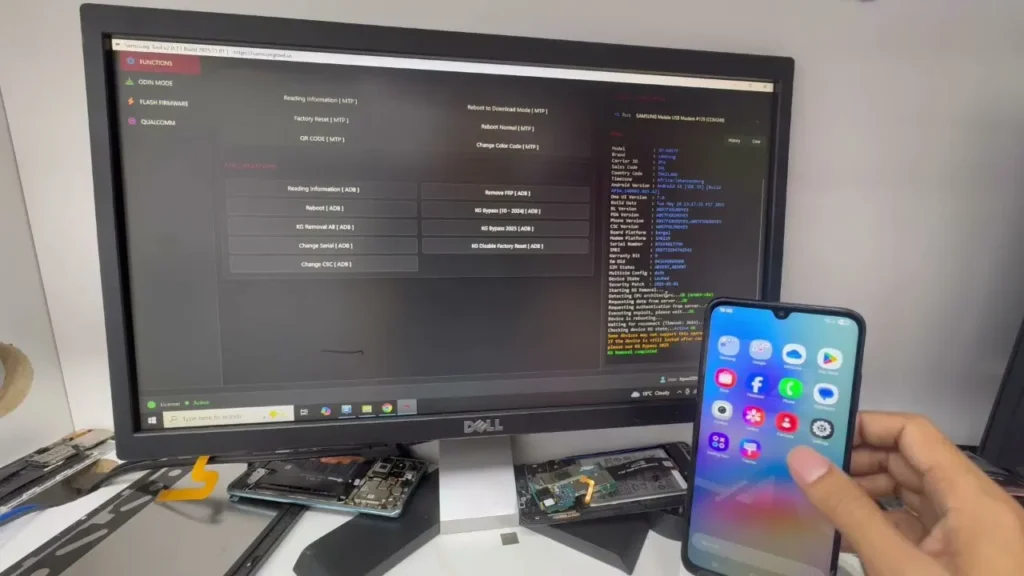
KG Lock is one of the most difficult restrictions found on Samsung devices running Android 10 through Android 16.
You can flash, reset, or replace the firmware, but the device may remain locked without the right professional tool.
Samsung Tool (CellTool) from celltool.io provides a powerful solution with the ability to fully bypass KG Lock offline without relocking after a reset.
Samsung Tool has officially been renamed to CellTool. The software, account system, and core Samsung servicing features remain part of the same platform. Throughout this article, “Samsung Tool” and “CellTool” refer to the same GSM software solution.
The Real Power of Samsung Tool
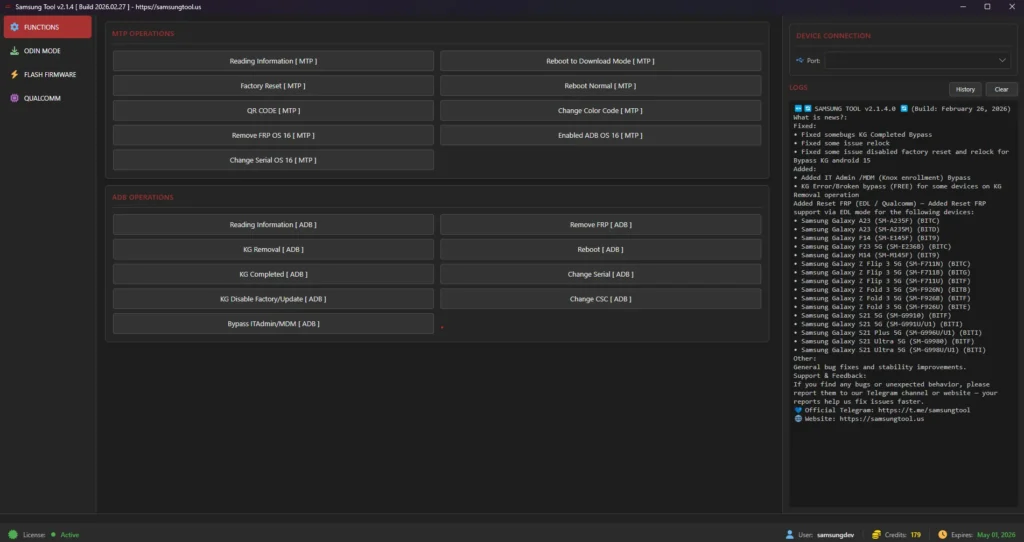
Instead of focusing on a basic feature list, consider the real value for mobile technicians. Samsung Tool, including professional platforms such as Z3X Pro and Chimera, allows deep access to essential Samsung system functions. With an active Samsung Tool account, you can handle many difficult software repair and unlocking jobs:
- FRP Bypass & Google Account Removal: Remove Factory Reset Protection on supported Samsung and Android versions with a streamlined, technician-friendly workflow.
- Network Unlock: Unlock supported carrier-locked devices from networks such as AT&T, T-Mobile, and Docomo so they can accept compatible SIM cards from other carriers.
- Read/Write System Partitions: Read, back up, and restore critical network and security partitions such as QCN, CERT, and EFS when supported.
Why Rent Samsung Tool Instead of Buying a Full License?
Buying a permanent software license may seem like the best option. However, mobile security and repair technology changes constantly. For technicians who only need occasional access, a Samsung Tool rental can be a more practical and cost-effective solution:
Significantly Reduce Your Tool Costs
A physical box or one-year software license may cost between $100 and $200. If you only handle a few Samsung jobs or need the tool for a single device, renting access by the hour or day can reduce your software cost by up to 90%.
Access an Updated Software Version
Samsung security updates are released frequently. With a rental service, you do not need to pay annual renewal fees. The available account is maintained for access to the latest supported software version and compatible Samsung models, including Galaxy S-series and Z Fold devices.
How to Rent a Samsung Tool Account
To avoid interruptions during a repair or unlocking job, follow the correct process when renting and activating a Samsung Tool account:
- Register and choose a rental plan: Visit Rent SAMSUNG KG Tool. The default rental period is 12 hours.
- Purchase additional Samsung Tool credits when required at Samsung Tool Credits For Existing User
- Receive your login details: Get the credentials required to activate and access Samsung Tool, including the username and password.
- Install the software: Download the SAMSUNG TOOL software you want to use. Make sure you also install the correct Samsung USB Driver for your computer.
- Log in and verify: Sign in to the software. After a short server verification, the available Flash, Unlock, and Repair functions will be enabled for use.
View the latest official information from samsungtool.us
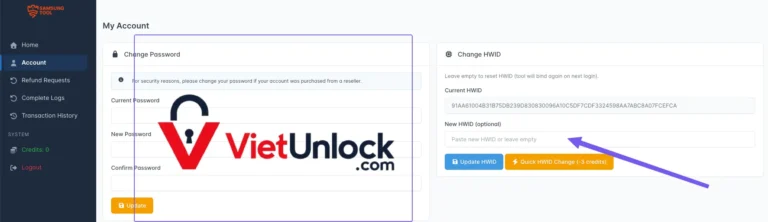
How to Quickly Change the Hardware ID (HWID)
When moving the software to another computer, you may encounter a Hardware ID verification error. The account management portal allows you to update the registered HWID quickly:
- Step 1: Open the account management portal at
user.samsungtool.usand sign in with your rental account credentials. - Step 2: Go to the device or Hardware ID (HWID) management section.
- Step 3: Copy the HWID displayed in Samsung Tool on your current computer and paste it into the HWID update field on the website.
- Step 4: Click Save. You can then log in to Samsung Tool from the registered computer.

Read the detailed guide: How to Change Samsung Tool HWID Using Credits
Samsung Tool Unlocking Best Practices
Do not click Unlock or Flash without checking the device and connection first. These practical precautions can help technicians reduce avoidable errors:
- Back up EFS/NVRAM first: Before using Samsung Tool unlocking or any supported repair function, use the Read or Backup option to save the EFS partition. A valid backup may help restore the device if the process is interrupted and prevent baseband or SIM-detection problems.
- Check the USB cable and port: Use a reliable USB Type-C cable and connect it directly to a motherboard USB port whenever possible. An unstable connection during flashing may cause the device to freeze at the logo or become soft-bricked.
- Use a stable internet connection: Server-based functions such as Read Codes require continuous communication with the remote server. An unstable connection may interrupt the operation and could consume credits without completing the job.
Frequently Asked Questions
System-level operations such as FRP removal or flashing stock firmware may erase all user data. If the device can still access the home screen, back up photos, contacts, and other important files before starting.
The processing time depends on the device model and operation. A standard FRP task may take around 1–3 minutes, while a server-based carrier unlock code request may take approximately 5–15 minutes.
Many standard operations may be included with account access. However, some newer models and Server Auth functions require credits for each operation. Send the exact device model to the VietUnlock team before renting so we can confirm compatibility and credit requirements.